

This page has been automatically translated. As a result, there may be discrepancies or inaccuracies in the text. Only the original version is binding. Legal claims arising from the content of the translated version are excluded.

Only digital passport photos allowed

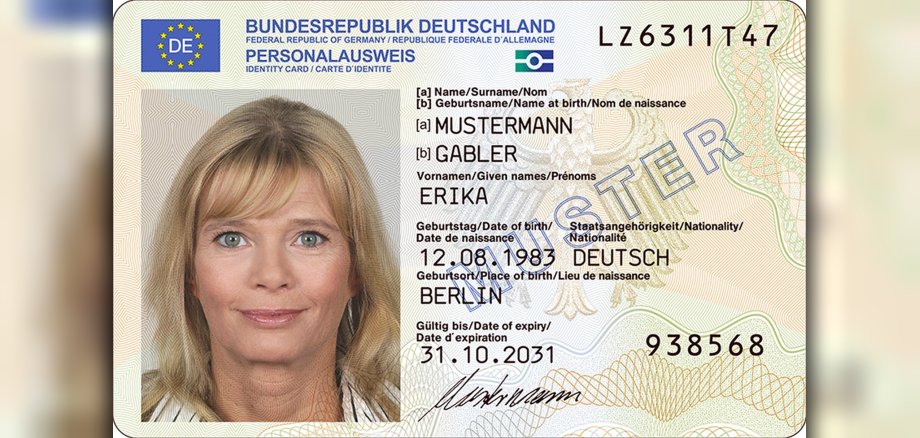
From this date, only digitally created passport photos may be used for this purpose. The Idar-Oberstein city administration would like to point out that there are basically two options for creating digital passport photos: A visit to the photo studio, which is probably the most practical way for many people, or a photo can be taken directly at the citizens' office.

  • Visit to the photo studio: The biometric passport photo is created digitally there and transmitted to the Citizens' Registration Office via secure electronic connections. The photo can then be retrieved there and used for the application. It should be noted that not all photo studios have the necessary technical equipment. You should therefore find out in advance whether this service is offered.
  • Photo taken in the citizens' office: When applying at the Citizens' Office, the photo is taken there directly and transferred to the application process without media discontinuity. The fee is 6 euros per document. However, the necessary photographic technology for this is not expected to be available at the Idar-Oberstein city administration from May 2. Until then, the only option is to visit the photo studio.
  • To apply for ID documents at the Citizens' Office, it is necessary to make an appointment in advance. Either online via the appointment calendar on the municipal homepage www.idar-oberstein.de or by telephone on 06781/64-3800.

Help with accessibility

  • General

    We make every effort to ensure that our websites are accessible. You can find details on this in our accessibility statement. You can send us suggestions for improvement using our feedback form.

  • Font size

    To adjust the font size, please use the following key combinations:

    Larger

    ⌘command
    +

    Smaller

    ⌘command

    Larger

    Ctrl
    +

    Smaller

    Ctrl
  • Keyboard navigation

    Use TAB and SHIFT + TAB to navigate through next/previous links, form elements and buttons.

    Use ENTER to open links and interact with elements.

  • Contrast mode

    Press the following key combination to reduce or increase the contrast:

    Enlarge

    ⌃control
    ⌥option
    ⌘command
    .

    Decrease

    ⌃control
    ⌥option
    ⌘command
    ,
    Note: The shortcuts must be activated in the system settings of the operating system.

    Press the left ALT key + left SHIFT key + PRINT to quickly switch the high contrast mode on or off.

  • Invert colors

    Press the following key combination to switch the color inversion on and off:

    ⌃control
    ⌥option
    ⌘command
    8
    Note: The shortcuts must be activated in the system settings of the operating system.

    First activate the screen magnifier and then switch the color inversion on and off with the following key combinations:

    1. screen magnifier

    +

    2. invert colors

    Ctrl
    Old
    I
  • Screen magnifier

    Press the following key combinations to use the screen magnifier:

    Switch on/off

    ⌥option
    ⌘command
    8

    Enlarge view

    ⌥option
    ⌘command
    =

    Reduce view

    ⌥option
    ⌘command
    Note: The shortcuts must be activated in the system settings of the operating system.

    Switch on / Enlarge view

    +

    Reduce view

Select language