This page has been automatically translated. As a result, there may be discrepancies or inaccuracies in the text. Only the original version is binding. Legal claims arising from the content of the translated version are excluded.

Visitors get to know the RS plus

The event offered the opportunity to get to know the educational concepts of the school and to engage in a personal exchange with the dedicated teachers. It also became clear that the RS plus Idar-Oberstein focuses on the personal development of the pupils in addition to their academic education.

During the event, visitors were able to actively participate in a variety of projects. From scientific experiments to artistic performances, sporting activities, brain and language games to programming and operating remote-controlled vehicles, the program offered something for everyone. The tour of the school allowed the guests to take a closer look at the classrooms, the specialist rooms, the modern digital equipment, the student café and the common rooms.
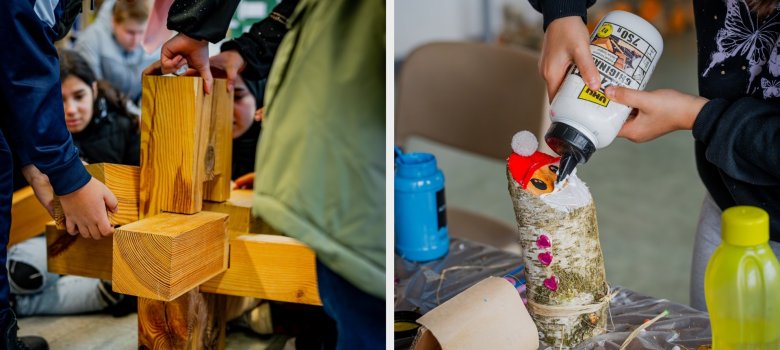
The photo shows two pictures. In one, pupils are putting wooden parts together. In the other, a pupil is making a Santa Claus out of a branch.

The hands-on projects generated enthusiasm and active participation, giving visitors the opportunity to slip into the role of the pupils themselves and experience the dynamics of school life. Interested parties were able to gain an insight into the all-day school program, school social work, the mediator concept and the inclusive special school concept. The dedicated student council provided scouts for support and took care of food and drink.

  • Further impressions of the Open Day can be found on the school website at https://rsplus-idar-oberstein.de/.

Help with accessibility

  • General

    We make every effort to ensure that our websites are accessible. You can find details on this in our accessibility statement. You can send us suggestions for improvement using our feedback form.

  • Font size

    To adjust the font size, please use the following key combinations:

    Larger

    ⌘command
    +

    Smaller

    ⌘command

    Larger

    Ctrl
    +

    Smaller

    Ctrl
  • Keyboard navigation

    Use TAB and SHIFT + TAB to navigate through next/previous links, form elements and buttons.

    Use ENTER to open links and interact with elements.

  • Contrast mode

    Press the following key combination to reduce or increase the contrast:

    Enlarge

    ⌃control
    ⌥option
    ⌘command
    .

    Decrease

    ⌃control
    ⌥option
    ⌘command
    ,
    Note: The shortcuts must be activated in the system settings of the operating system.

    Press the left ALT key + left SHIFT key + PRINT to quickly switch the high contrast mode on or off.

  • Invert colors

    Press the following key combination to switch the color inversion on and off:

    ⌃control
    ⌥option
    ⌘command
    8
    Note: The shortcuts must be activated in the system settings of the operating system.

    First activate the screen magnifier and then switch the color inversion on and off with the following key combinations:

    1. screen magnifier

    +

    2. invert colors

    Ctrl
    Old
    I
  • Screen magnifier

    Press the following key combinations to use the screen magnifier:

    Switch on/off

    ⌥option
    ⌘command
    8

    Enlarge view

    ⌥option
    ⌘command
    =

    Reduce view

    ⌥option
    ⌘command
    Note: The shortcuts must be activated in the system settings of the operating system.

    Switch on / Enlarge view

    +

    Reduce view

Select language